The ArbEx terminal brings cross-venue pricing, liquidity, contract details, and analytical tools into a single workspace. This guide covers the primary features available throughout the terminal.
The Terminal
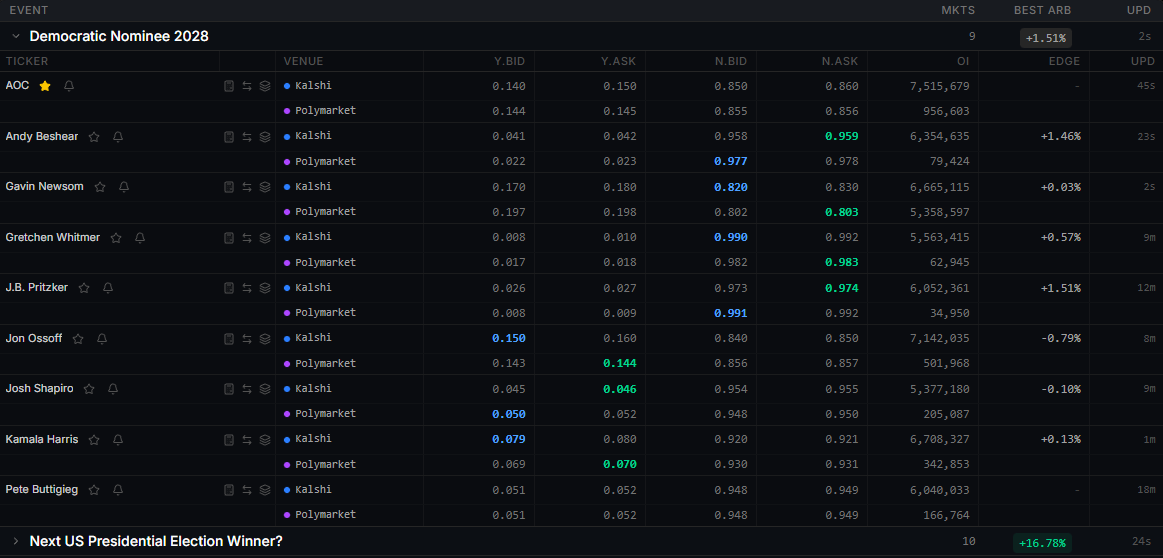
The terminal homepage organizes markets by event. Within each event, related contracts are grouped by ticker and displayed across their available venues.
Each row shows venue-level bids and asks, available market information, open interest, calculated edge, and the time of the latest update. Events are expanded by default but can be collapsed. Hover over any tool icon to view a description of its function.
Watchlists
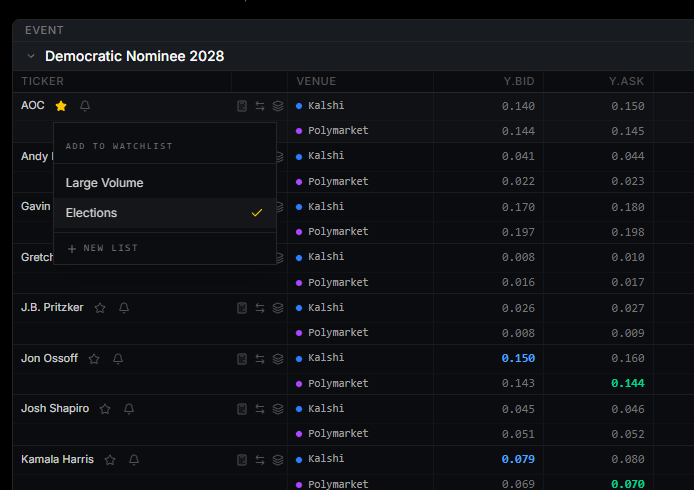
Select the star beside a ticker to add it to your default watchlist, save it to an existing list, or create a new one. Watchlists can also be viewed and managed from the terminal sidebar.
Alerts
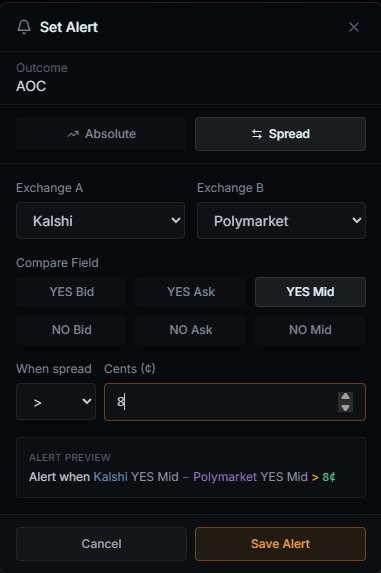
Select the bell beside a ticker to open the Alert modal.
Absolute alerts trigger when a selected market field reaches a specified value.
Spread alerts monitor the difference between prices or quote fields across two venues and trigger when that spread crosses your chosen threshold.
Alerts are sent by default to your signup email; you can change this in Account Settings.
Calculator
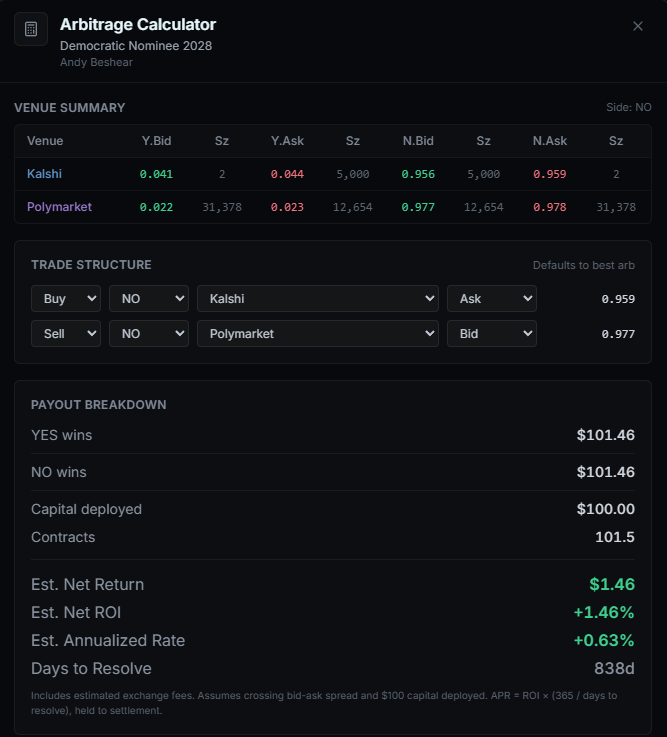
Select the calculator icon to open the Arbitrage Calculator. The venue summary displays the current top-of-book bids, asks, and available sizes. The Trade Structure section shows the contracts and quote sides used to construct the position.
ArbEx initially selects the highest calculated cross-venue return available for that ticker, even when the best available return is negative. Calculations assume execution by crossing the bid-ask spread on each leg and include estimated venue fees.
You can modify the venue and contract side used for each leg. The payout breakdown then estimates capital deployed, contract quantity, outcome-dependent payouts, net return, ROI, and annualized return.
Compare Markets
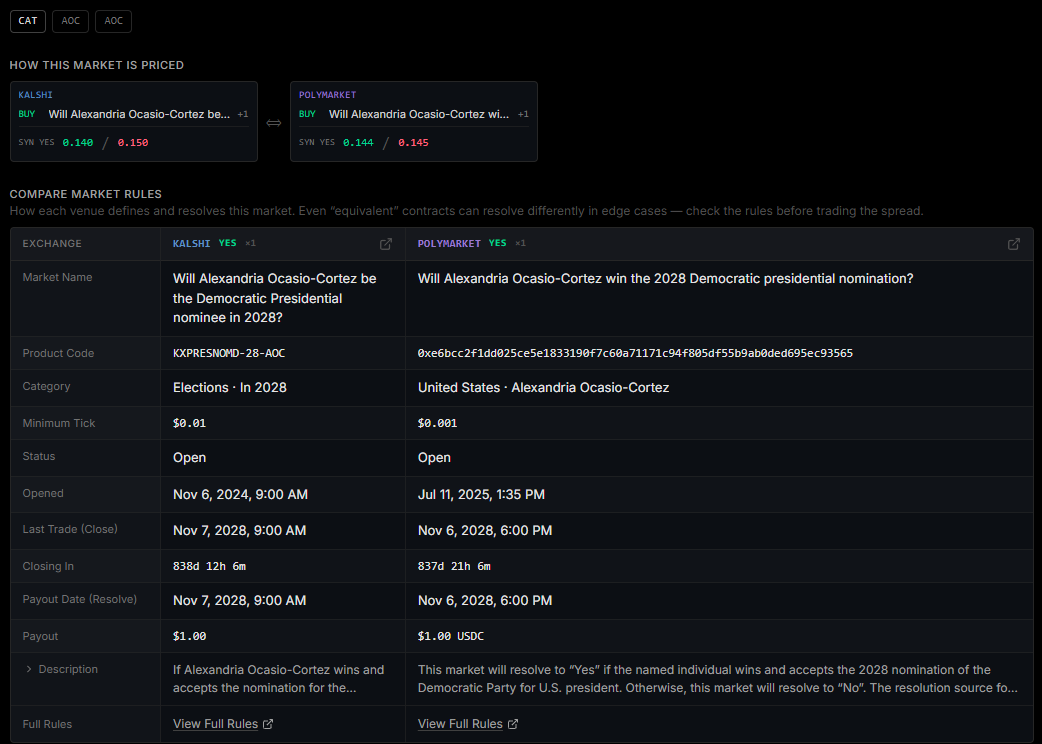
Select the Compare icon beside a ticker to review how the market is constructed and how the underlying contracts differ.
The pricing section shows the venue contracts and quote inputs used to calculate the ticker. The rules table places contract details side by side, including market wording, dates, payout terms, resolution criteria, and links to the full venue rules.
Always review the underlying rules before treating two contracts as economically equivalent.
Market Depth
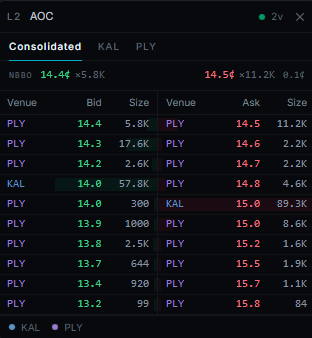
Select the Level 2 icon to open Market Depth in the right-hand sidebar. The consolidated book combines bids and asks from all supported venues for the selected ticker.
Use the venue tabs to isolate an individual order book. Each price level displays the venue, price, and available size.
When the best bid is greater than the lowest offer, ArbEx highlights the book and identifies it as crossed. A crossed book may indicate a potential opportunity.
Charts
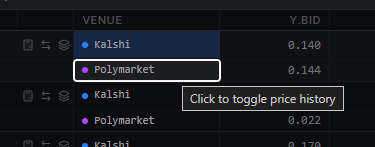
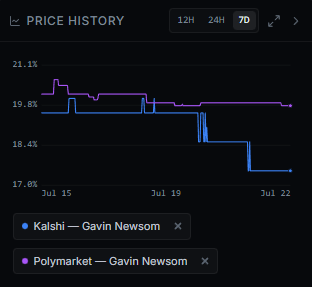
Select a venue name in the market table to add its price history to the chart. Multiple venues and tickers can be displayed together for comparison.
The chart appears beneath Market Depth in the right-hand sidebar. Use the controls at the top to change the time range or expand the chart. Hover over the chart to view prices at a specific point in time.