
ArbEx automatically matches equivalent contracts across supported venues. You can also create custom tickers to compare markets that have not yet been matched or to build your own synthetic structures.
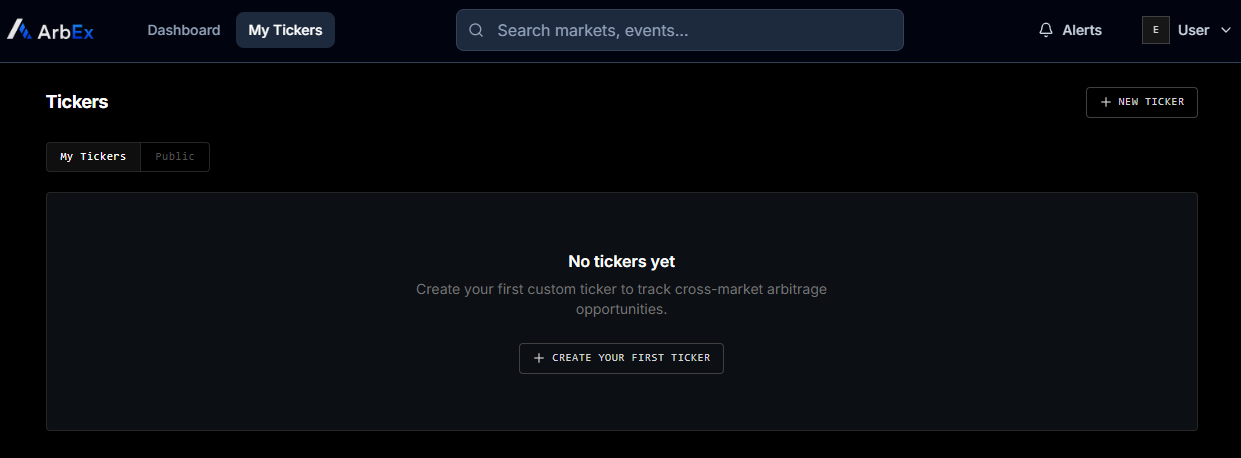
To begin creating a custom ticker, select My Tickers from the ArbEx navigation, then choose + New Ticker. If you have not created a ticker before, you can also select Create Your First Ticker from the center of the page.
Finding contracts
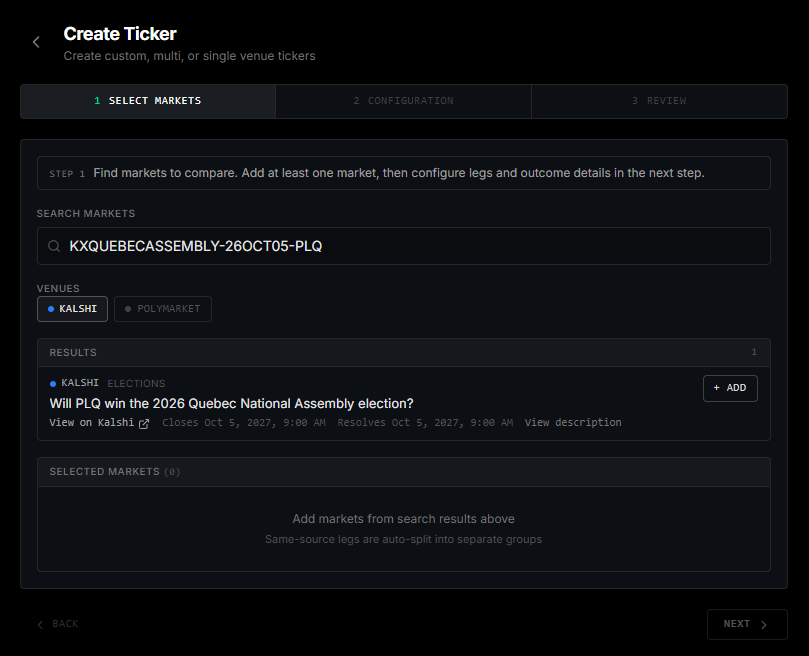
Search for the first contract by market title or venue identifier. Use the venue filters to limit results to Kalshi or Polymarket, then select Add beside the desired contract.
Kalshi
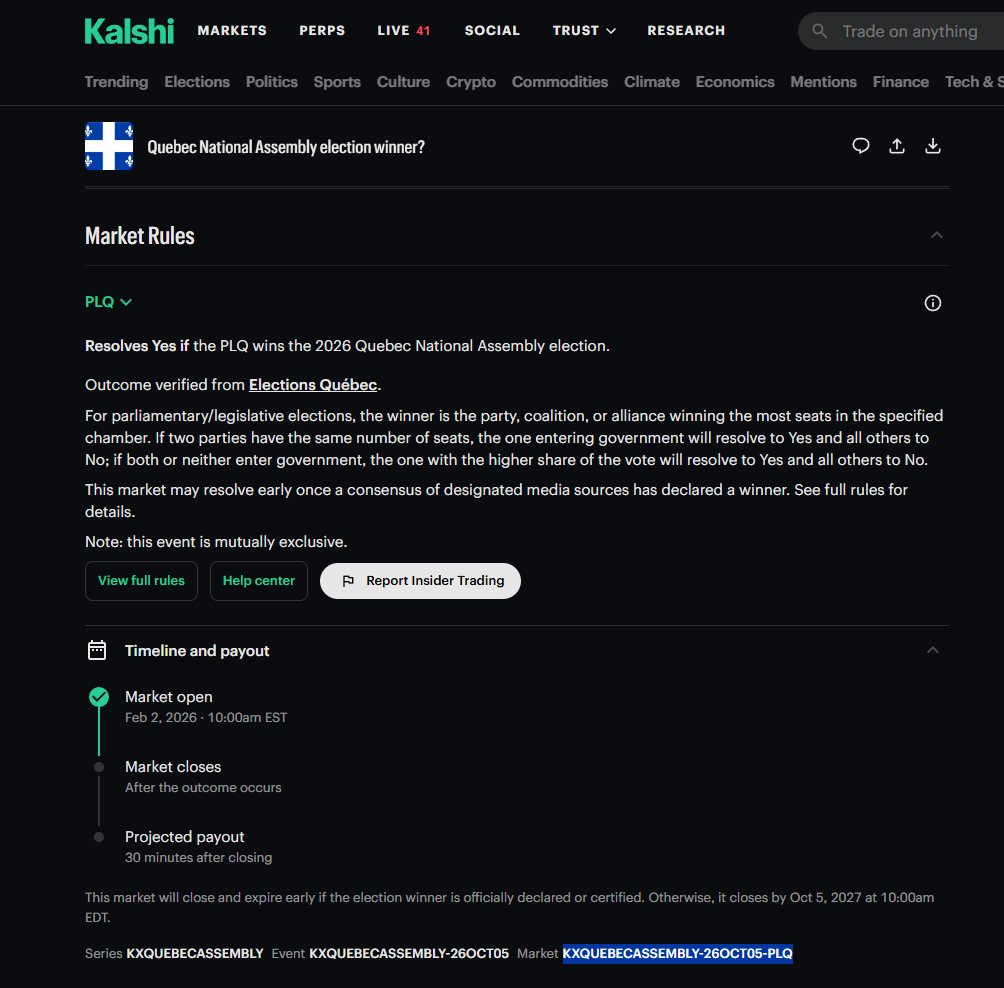
For the most precise Kalshi search, open the contract on Kalshi and expand Timeline and Payout. Copy the Market ID shown at the bottom of the section and paste it into ArbEx.
ArbEx search supports Kalshi market titles, Series IDs, Event IDs, and Market IDs.
Here we are going to search for and add Will PLQ win the Quebec National Assembly Election.
Polymarket
Polymarket's displayed event title may differ from the individual market question returned by its API. To find the precise contract:
- Open the event on Polymarket.
- Select the desired outcome.
- Choose View Details under the resolution section.
- Copy the official market question shown on the Oracle page.
- Paste that question into ArbEx and select Add.
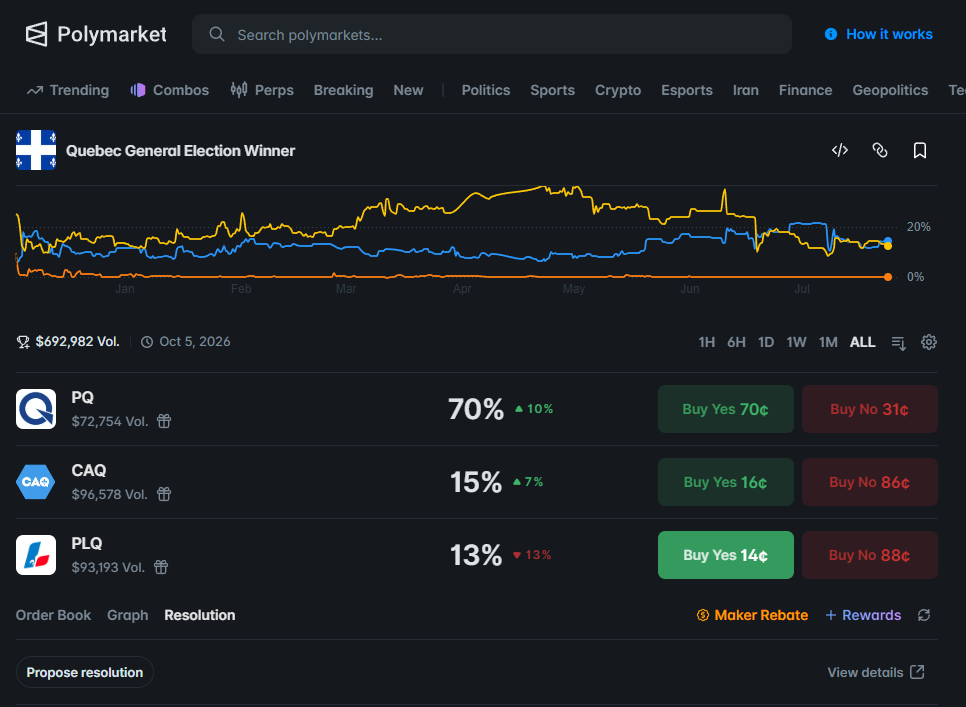
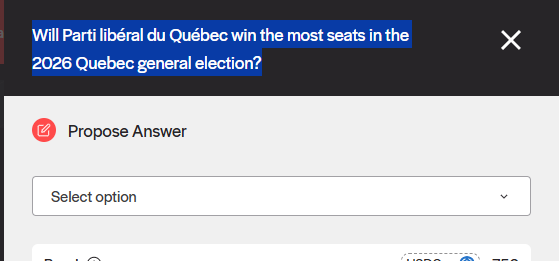
Copy that, paste it into ArbEx, and select Add.
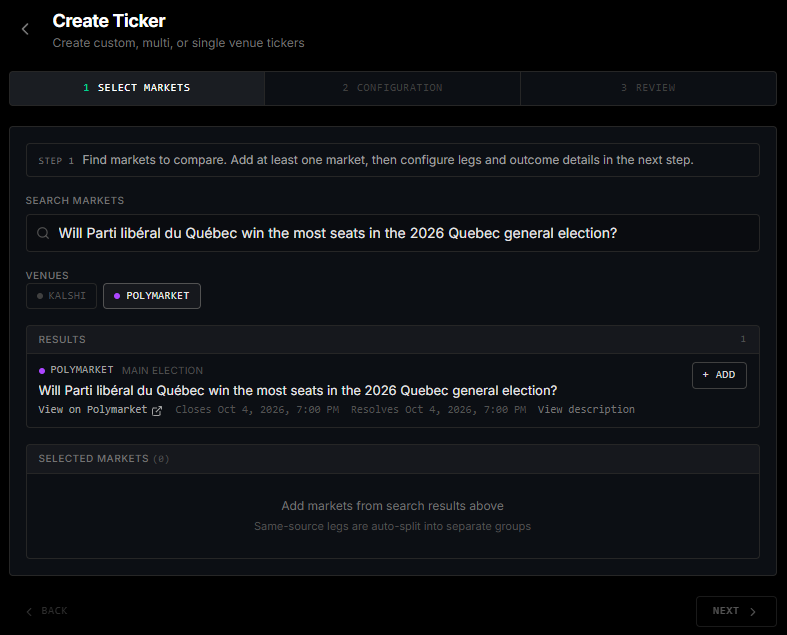
A custom ticker may contain a single market or multiple legs. For this example, add the matching Kalshi and Polymarket contracts, then select Next.
Step 2 — Configuration
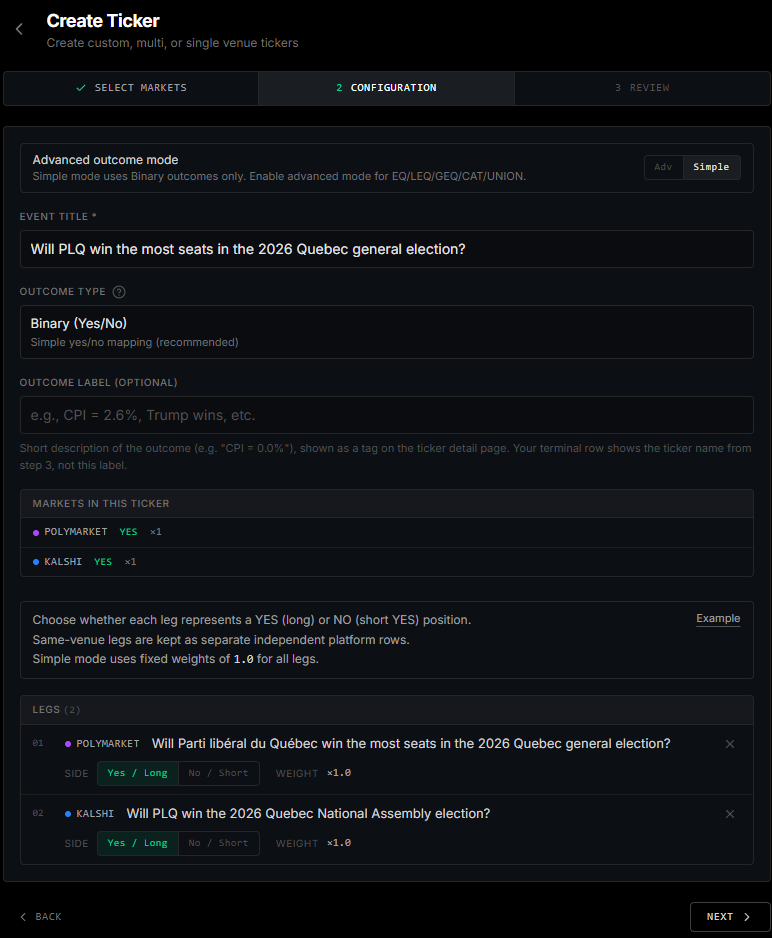
Outcome Mode
Keep Simple selected when comparing ordinary Yes/No contracts that represent the same outcome. Advanced mode supports more complex multi-leg and synthetic structures, which we cover later.
Event Title
Enter the event title that should appear in ArbEx. In this example: Will PLQ win the most seats in the 2026 Quebec general election?
Outcome Type
If you have the simple outcome mode selected, Binary will be your only option. If you are using the advanced outcome mode, you can select from the dropdown.
Outcome Label
The optional outcome label identifies the specific result represented by the ticker — here we could use PLQ. Note that it is optional.
For equivalent binary contracts, leave both legs set to Yes / Long. ArbEx will compare the available long and short combinations across the two venues when calculating edge.
Step 3 — Review
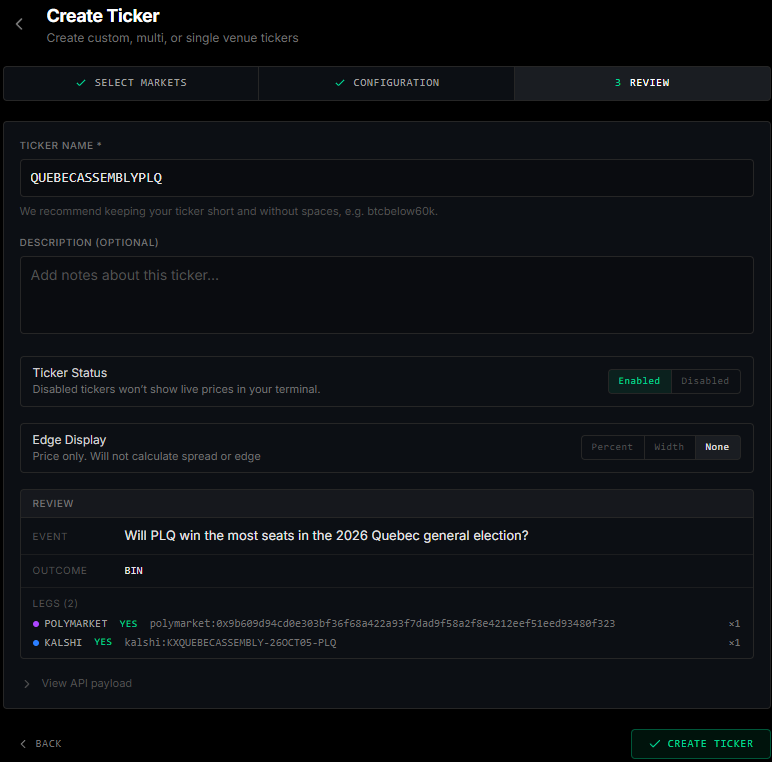
The final step is review. Here we assign a ticker name — we recommend keeping this short and easily identifiable; in this example we use QUEBECASSEMLYPLQ.
If you want your market to be visible, keep Enabled selected. Next you can select the edge display.
- Percent shows your edge net of fees in percentage terms.
- Width shows the gross spread of the two markets, which could be used for a spread market like the one calculated earlier.
- None shows no edge display.
When done, select Create Ticker to finish. ArbEx will bring you to the Compare page showing how your market is priced and the details from each venue.
After creation
After creation, the ticker may take up to 10 minutes to begin receiving live data. Once initialized, ArbEx will populate up to seven days of available price history for the chart.
Before initialization, the ticker may temporarily display a bid of $0, an ask of $1, missing size, or an unusually old UPD value. These placeholder values should disappear after both venue feeds begin updating.

After both streamers pick up the ticker, data will be streamed in real time.

Once both venue feeds are live, your custom ticker will appear in ArbEx with current pricing, calculated edge, historical data, and access to the same analytical tools as ArbEx-matched markets.